

US postcard safe zones
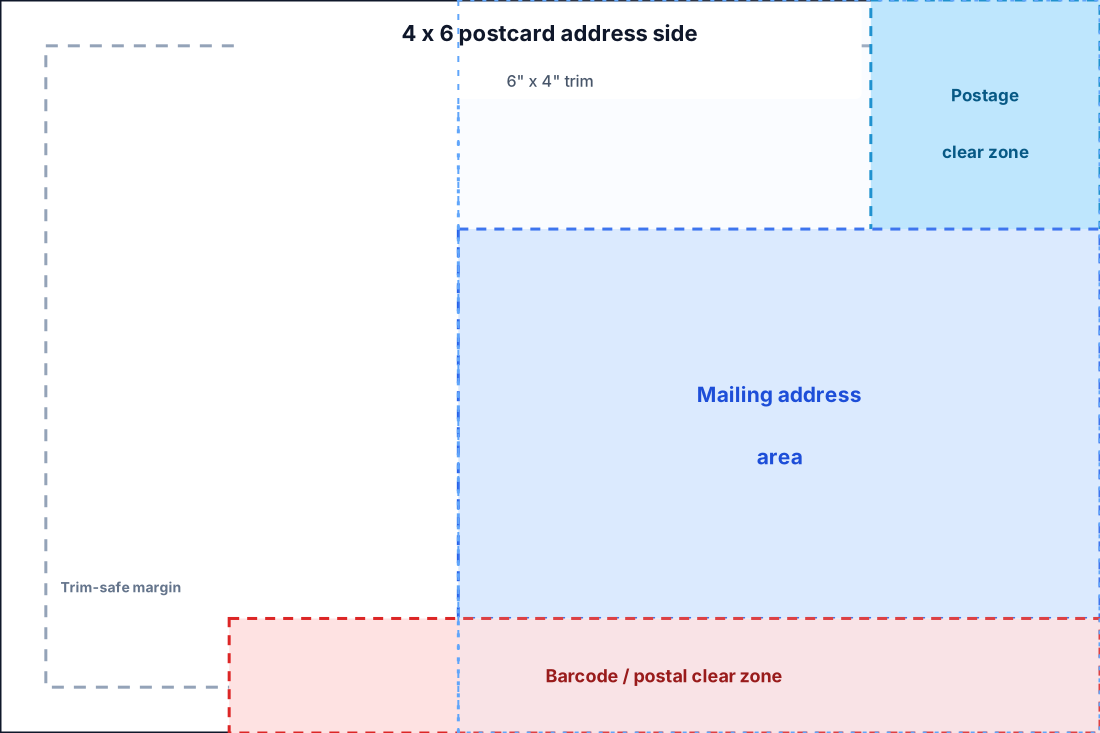
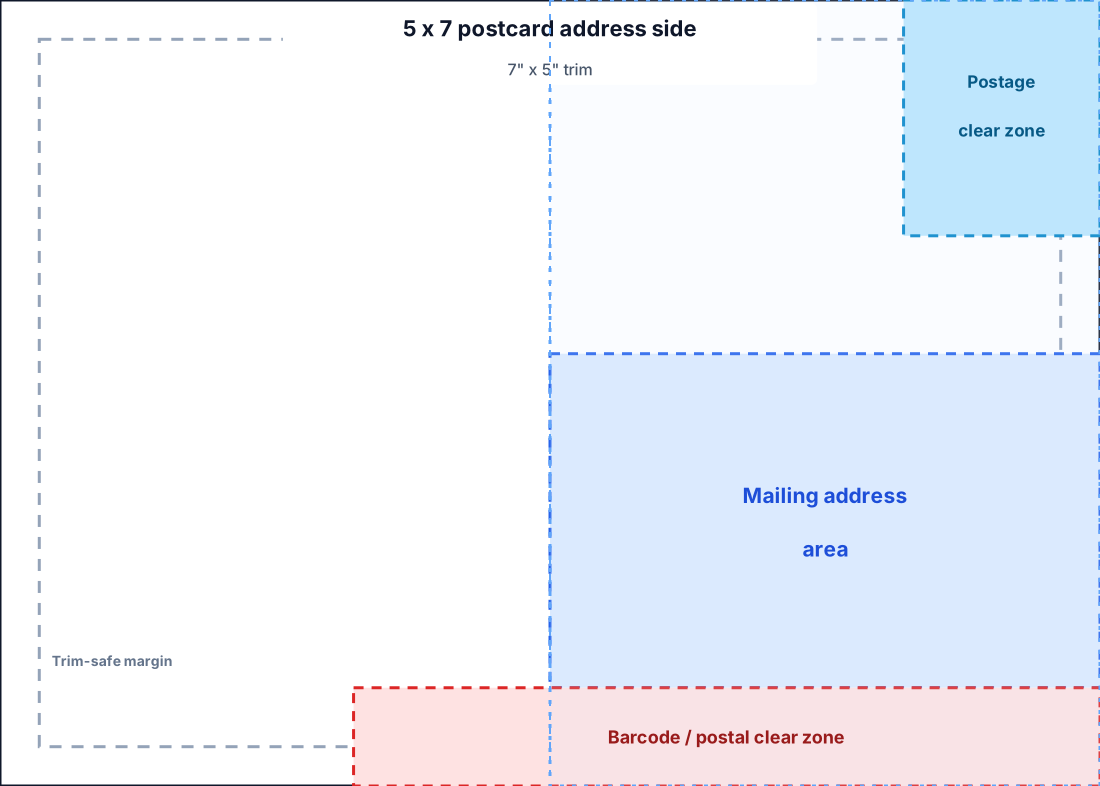
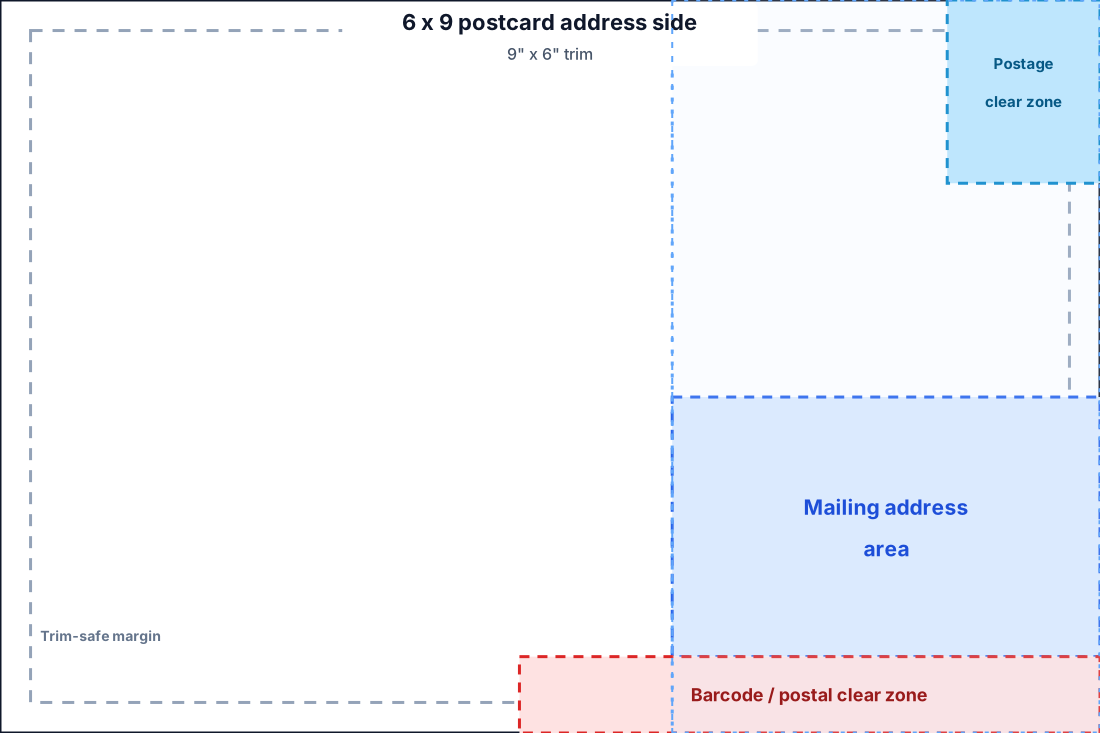
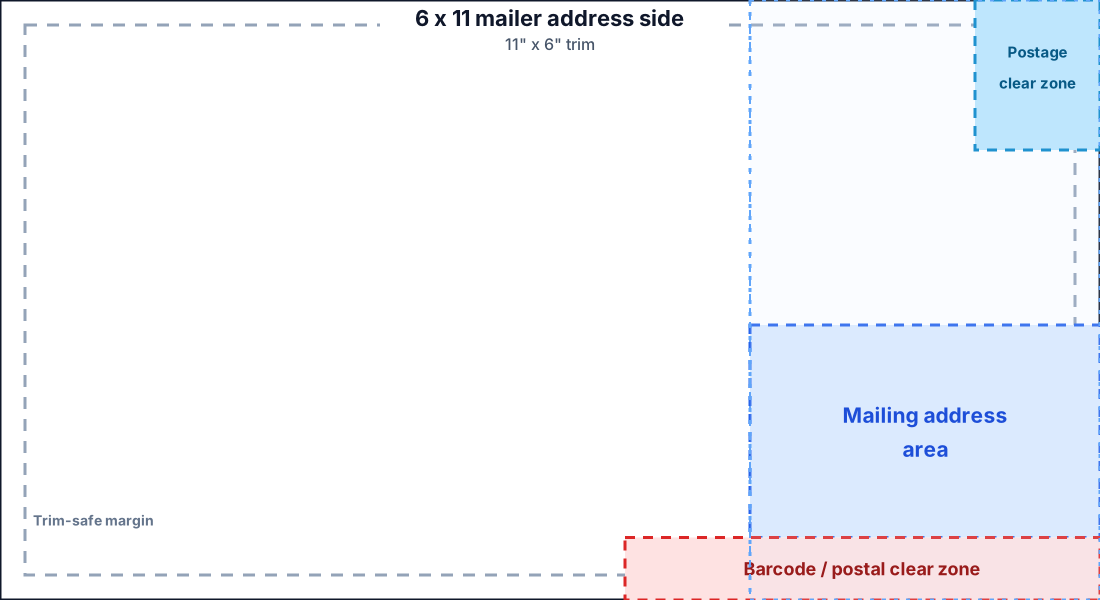
Use these diagrams and starter templates when creating US no-envelope postcard HTML. They are designed to keep creative content away from the areas normally needed for postage, mailing address, barcodes, and USPS/post-office markings.
These templates are starting points, not a substitute for final mail-piece approval. If Scribeless or your print workflow adds postage, address data, or postal markings after rendering, keep the matching zones clear in your HTML.
Source references
The diagrams are based on the current USPS Domestic Mail Manual guidance for:
- Barcode clear zone on cards and letter-size pieces: lower right area, 4-3/4 inches from the right edge and 5/8 inch from the bottom edge.
- OCR read area: recommended address area between 1/2 inch from each side, 2-3/4 inches from the bottom, and 5/8 inch from the bottom.
- Postcards with message areas: the right portion containing delivery address, postage, and USPS markings must be at least 2-1/8 inches wide.
See USPS DMM 201 Physical Standards and 202 Elements on the Face of a Mailpiece.
Starter templates
| Product | Product key | Starter HTML |
|---|---|---|
| 4 x 6 postcard | 4x6_postcard | Download HTML |
| 5 x 7 postcard | 5x7_postcard | Download HTML |
The same layout rules are useful for team-specific 4 x 6 postcard product keys, such as custom marketing postcard products provided by Scribeless.
4 x 6 postcard
5 x 7 postcard
6 x 9 postcard
6 x 11 mailer
Design rules
- Keep important creative content at least 0.25 inches from the trim edge.
- Keep the top-right postage or indicia area clear.
- Keep the right-side mailing address area available for address data.
- Keep the bottom-right barcode clear zone available for postal barcodes and markings.
- Put Smart QR codes outside the postage, address, and barcode areas.
- If your HTML includes the delivery address, use at least 8-point sans-serif text and keep the address block clean and legible.
- Test one recipient and inspect the returned preview before sending production traffic.
Starter template usage
Download the starter HTML for the size you need, then replace the sample copy and QR destination. The template includes hidden safe-zone overlays.
To preview the overlays while designing, add show-safe-zones to the postcard element:
<main class="postcard show-safe-zones">
Remove show-safe-zones before sending production HTML.
Example Smart QR placement
This QR placeholder is placed in the message area, outside the protected postal zones:
<div
  data-sqr
  data-sqr-id="example-link"
  data-sqr-destination="https://example.com"
  data-sqr-size="0.88in"
  style="width:0.88in;height:0.88in"
></div>
Keep the CSS width and height aligned with data-sqr-size so the layout reserves the correct amount of space before Scribeless replaces the placeholder with the generated QR image.